Phone Accessibility Setup and Training

Make the phone in your pocket work for you.

iPhones and Android phones have powerful accessibility features built in, but most people never find them. We come to you, set up the right ones and teach you to use them with confidence. For people with vision, hearing, deafblind, physical or cognitive disability, and the OTs and families who support them.

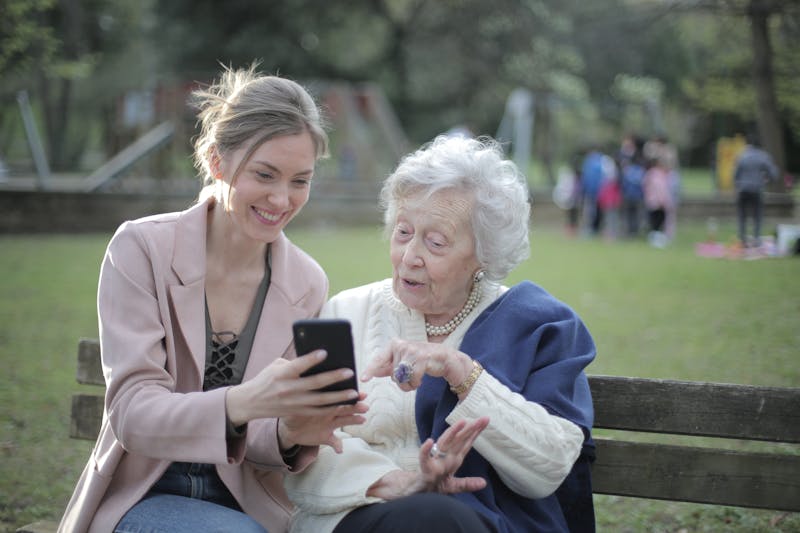
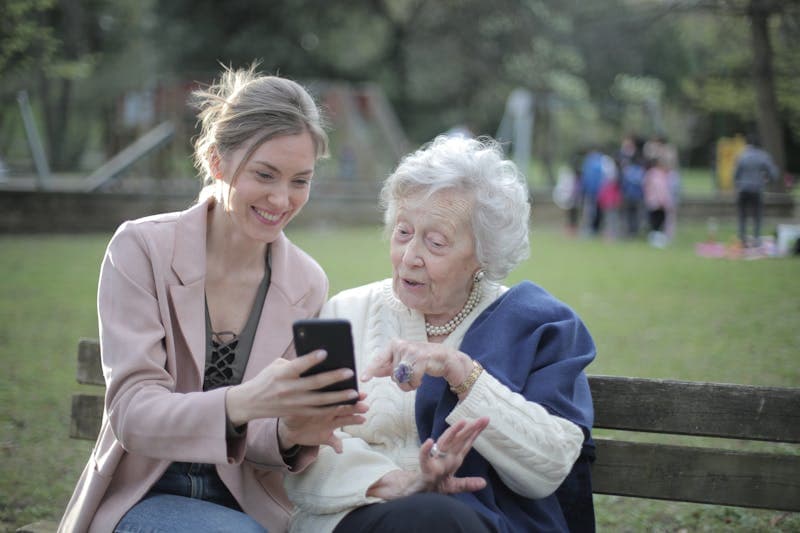
Younger woman showing an older woman how to use her smartphone on a park bench
Funding
NDIS Core budget
Rate
$176 per hour
Where
Perth metro, in your home
Phones
iPhone and Android

Innogreen is a registered NDIS provider (Provider No. 4050064987).

How it works

Four steps, from what is hard today to a phone you can use

  1. Understand

    We talk with you and your OT about what is hard on the phone today.

  2. Set up

    We switch on the right features and pair hearing aids or braille displays.

  3. Teach

    Hands-on practice with the gestures and commands you will actually use.

  4. Leave it simple

    A plain-English reminder sheet, large print if needed, and a follow-up.

What we set up

The right features for the way you use your phone

Feature names are current for iOS 26 and Android 16. Some features depend on the phone model, manufacturer and software version. Features marked NEW were added in the latest releases.

Vision and blindness

Low vision, blind and deafblind users

iPhone (iOS 26)

  • VoiceOver screen reader

    We turn it on, set speech speed and voice, and teach the core gestures.

  • Braille displays and Braille AccessNEW

    We pair a braille display and set up the braille note taker.

  • Zoom and Magnifier

    We set zoom gestures and the camera magnifier, including detection of doors and text.

  • Text size, contrast, Spoken Content and Accessibility ReaderNEW

    We set larger text, colour filters and read-aloud for screens and print.

Android (Android 16)

  • TalkBack screen reader

    We turn it on, choose a natural voice and teach the core gestures.

  • Braille keyboard and displays

    We set up the on-screen braille keyboard and pair a braille display.

  • Magnification and Magnifier

    We set the magnification shortcut and the camera magnifier.

  • Display size, outline text and Select to Speak

    We set larger text, colour correction, dark theme and tap-to-read-aloud.

Hearing and deafness

Deaf, hard of hearing and hearing aid users

iPhone (iOS 26)

  • Live Captions

    We caption calls, FaceTime and video in real time.

  • Sound Recognition

    We alert you to doorbells, alarms, a knock or a baby crying.

  • Hearing devices and Live Listen

    We pair Made for iPhone hearing aids and use the phone as a remote mic.

  • Flash, vibration and RTT

    We set LED flash alerts, custom vibrations and real-time text calls.

Android (Android 16)

  • Live Caption and Expressive CaptionsNEW

    We caption media and calls, including tone and sounds.

  • Live Transcribe and Sound Notifications

    We turn conversations into text and flag household sounds.

  • Hearing aid pairing

    We connect compatible hearing aids and set hearing aid mode for calls.

  • Flash notifications, vibration and RTT

    We set flash alerts, stronger vibration and real-time text calls.

Physical and motor

Limited hand use, tremor, fatigue or switch users

iPhone (iOS 26)

  • Voice Control and Siri

    We set up full hands-free control: open apps, dictate, tap and scroll by voice.

  • AssistiveTouch, Back Tap, Touch Accommodations

    We add a floating menu, shortcuts and tremor-friendly touch timing.

  • Switch Control

    We connect and configure external switches.

  • Eye Tracking and Head Tracking

    We set up control with eye or head movement on supported models.

Android (Android 16)

  • Voice Access and Google Assistant

    We set up hands-free control, including starting Voice Access by voice.

  • Accessibility Menu

    We add a large on-screen menu for power, volume and screenshots.

  • Switch Access and Camera Switches

    We set up external switches or facial gestures as switches.

  • Touch and hold delay, shortcuts

    We tune timing for tremor and put key features one press away.

Cognitive and communication

Intellectual disability, brain injury, dementia, speech loss

iPhone (iOS 26)

  • Assistive Access

    We build a simplified phone with large buttons and only the apps you need.

  • Guided Access and Screen Time

    We lock the phone to one app and limit distractions.

  • Live Speech and Personal Voice

    We type to speak aloud on calls, in your own synthesised voice.

Android (Android 16)

  • Simple home screen

    We set Easy mode or large-icon layouts with only the apps you need.

  • App pinning and Digital Wellbeing

    We keep the phone on one app and reduce distractions.

  • Text-to-speech

    We set up speech output so typed words are read aloud.

Safety

Living alone or at risk of falls

iPhone (iOS 26)

  • Emergency SOS, Medical ID and Find My

    We set emergency contacts, medical details and location sharing with family.

Android (Android 16)

  • Emergency SOS, emergency info and location sharing

    We set contacts, medical details and safety features.

For occupational therapists

Refer with the goals you want met

Refer a participant with the goals you want met. We set the phone up to your recommendations and report back on what was configured and what the participant can now do on their own.

Part of a connected home

The phone talks to the rest of the house

We also link the phone to video doorbells, Bellman alerting systems, smart lights, locks and automatic doors, so alerts and controls arrive in a way that suits you.

View smart homes
Worth knowing

How we work with you

Works alongside your OT

We set the phone up around the goals and recommendations your occupational therapist has given you.

We come to you

Visits are in your home across the Perth metro area, so we set the phone up where you will use it.

Practice, not just settings

Turning a feature on is the easy part. You get hands-on practice with the gestures and commands until you are confident.

Something you can look back at

A plain-English reminder sheet, in large print if you need it, and a follow-up after the visit.

Cost and funding

NDIS funded from the Core budget

$176 per hour

  • iPhone and Android both supported.
  • Works alongside your OT's goals and recommendations.
  • Provided by a registered NDIS provider, Provider No. 4050064987.

NDIS support item 03_222100911_0124_1_1. Core, Consumables, Low Cost AT. Programming and/or customising electronic equipment to meet the individual's disability-specific needs. Not sure how this sits in your plan? See our NDIS line item finder or call us on 1800 123 000.

Frequently asked questions

Both iPhone and Android. Feature names on this page are current for iOS 26 and Android 16. Some features depend on the phone model, the manufacturer and the software version, so tell us which phone you have when you book and we will confirm what it can do.

People with vision, hearing, deafblind, physical or cognitive disability, along with the occupational therapists and families who support them.

Phone Accessibility Setup and Training is an NDIS-funded service charged at $176 per hour from the Core budget. It is claimed against support item 03_222100911_0124_1_1: Core, Consumables, Low Cost AT, programming and/or customising electronic equipment to meet the individual's disability-specific needs. Innogreen is a registered NDIS provider (Provider No. 4050064987).

Yes. An OT can refer a participant with the goals they want met. We set the phone up to their recommendations and report back on what was configured and what the participant can now do on their own. You can also call us on 1800 123 000 to book a phone setup.

Yes. On iPhone we pair Made for iPhone hearing aids and braille displays. On Android we connect compatible hearing aids and pair braille displays. Compatibility depends on the device, so give us the model when you book.

Yes. We also link the phone to video doorbells, Bellman alerting systems, smart lights, locks and automatic doors, so alerts and controls arrive in a way that suits you.

A phone set up for how you use it, hands-on practice with the gestures and commands you will use, a plain-English reminder sheet (large print if you need it) and a follow-up.

Make your phone work for you

Tell us which phone you have and what is hard to use, and we will book a visit to set up the right features and teach you how to use them.

info@innogreen.net.au · C1A 15/212 Carr Place, Leederville WA 6007